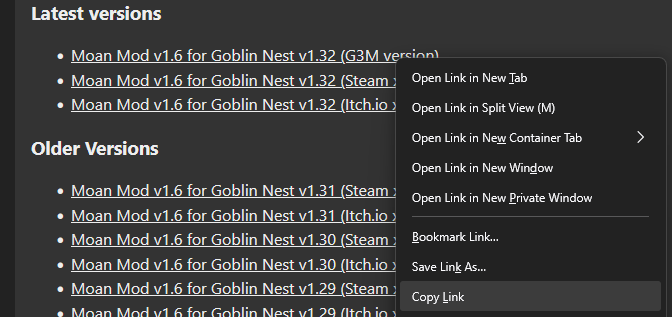
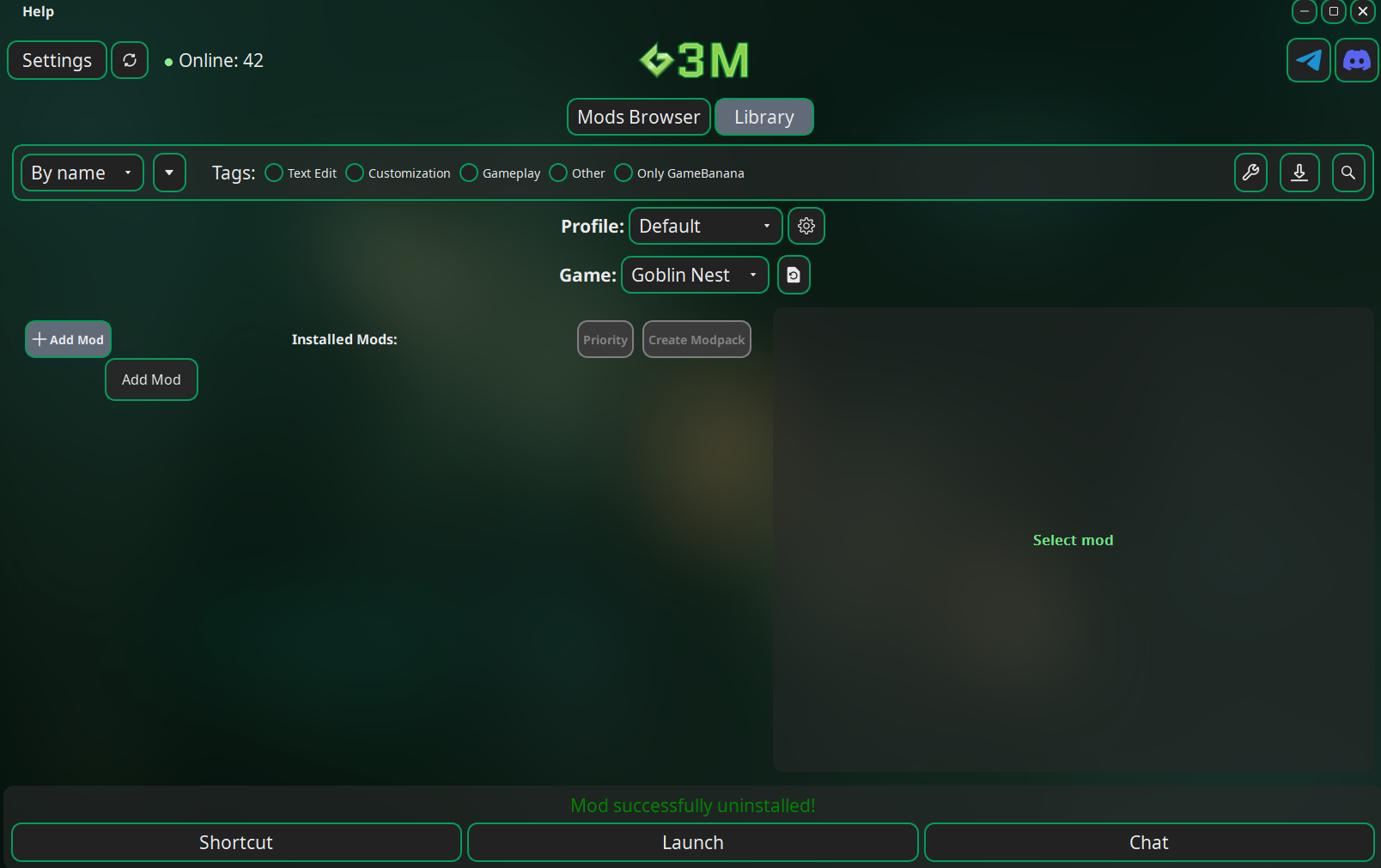
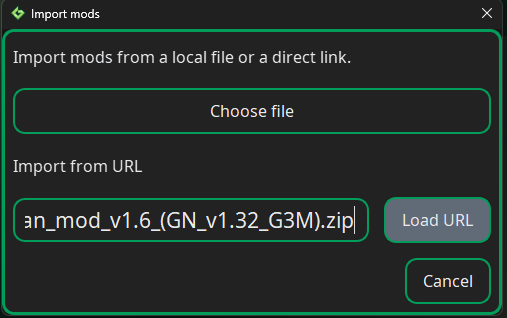
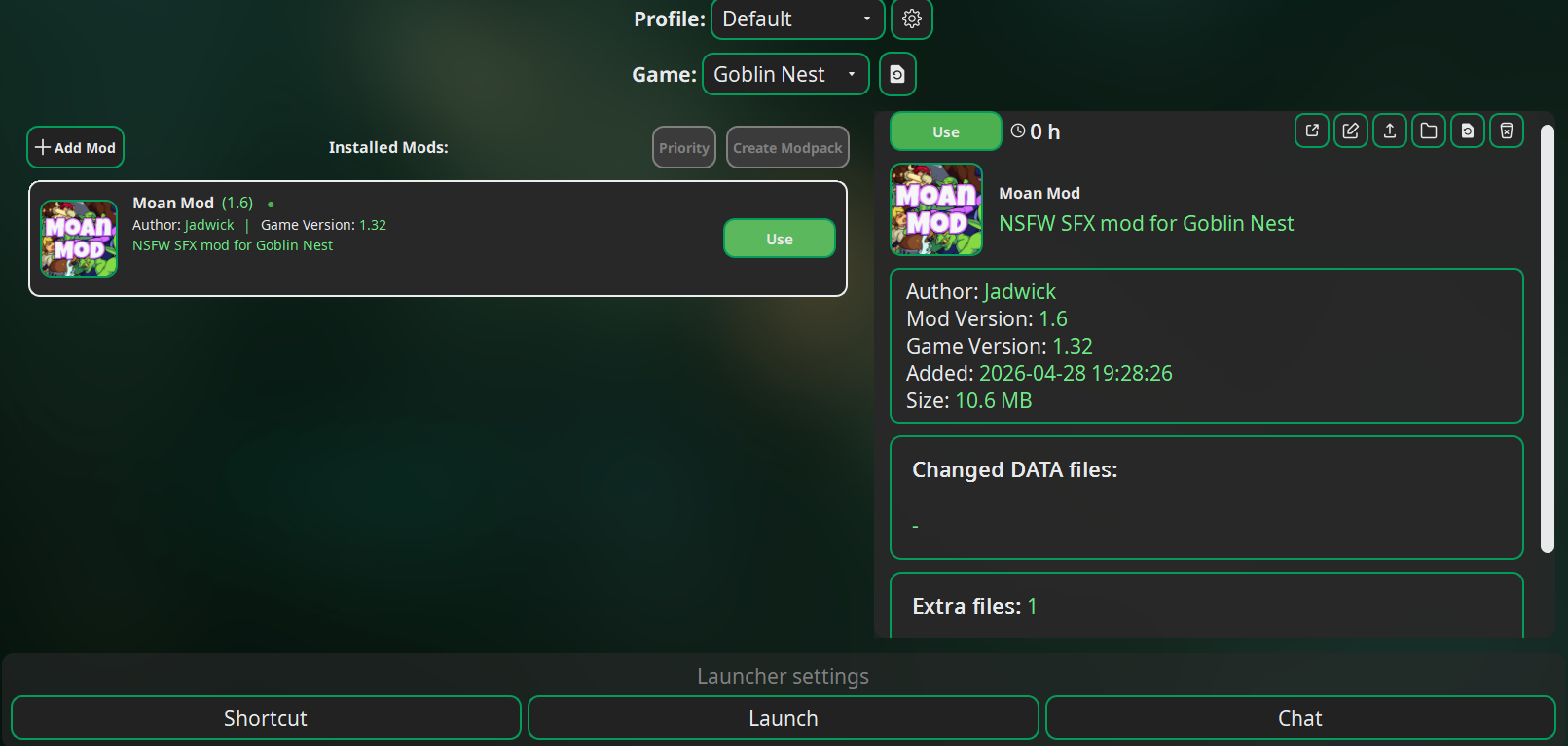
This mod adds randomized SFX to prisoners in your Nest.
6 different voice sets, 69 (nice) total new sound effects.
BJ SFX for applicable cells.
Prisoners have persistent randomly generated voices.
Randomized pitch shifting for variety.
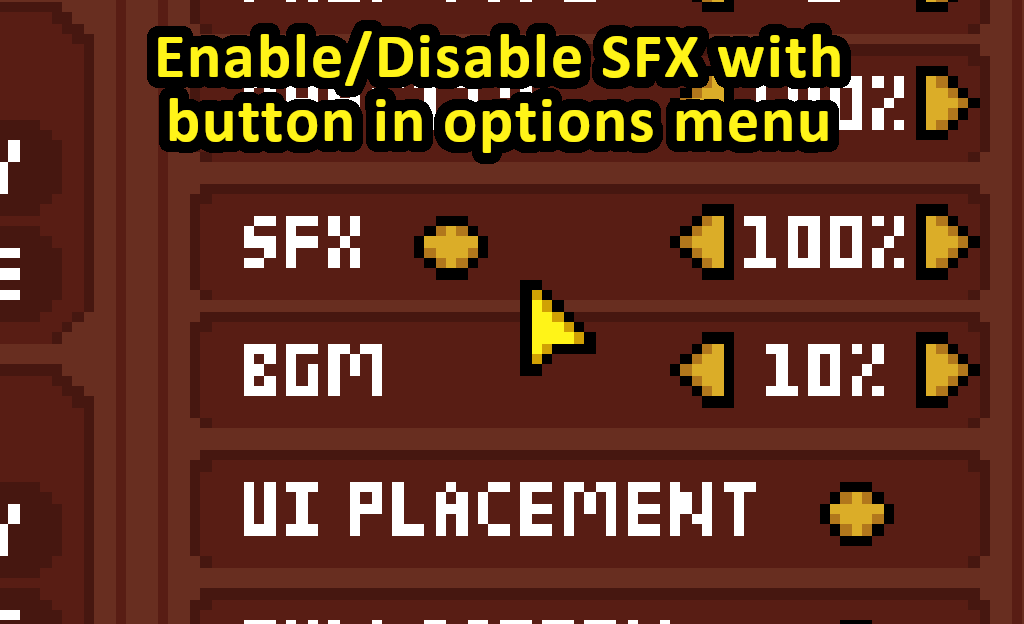
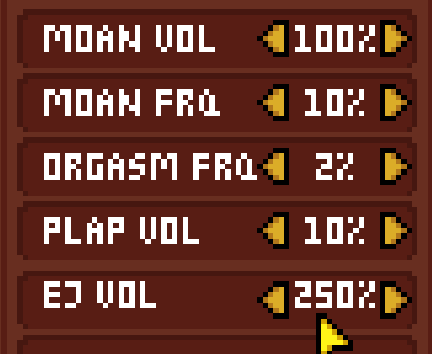
New button in options menu to modify sound options.
Vanilla compatible, voices will be randomly selected on load.
Steam and Itch.io versions.
Mod Updates
Sep 22, 2026 - Updated mod manifest file to be compatible with 1.39
Sep 16, 2026 - Updated guide to reflect new GNX installer.
Aug 16, 2026 - Added Instructions for Goblin's Best Friend
May 7, 2026 - Updated patches for Goblin Nest v1.33
April 28, 2026 - Updated patches for Goblin Nest 1.32
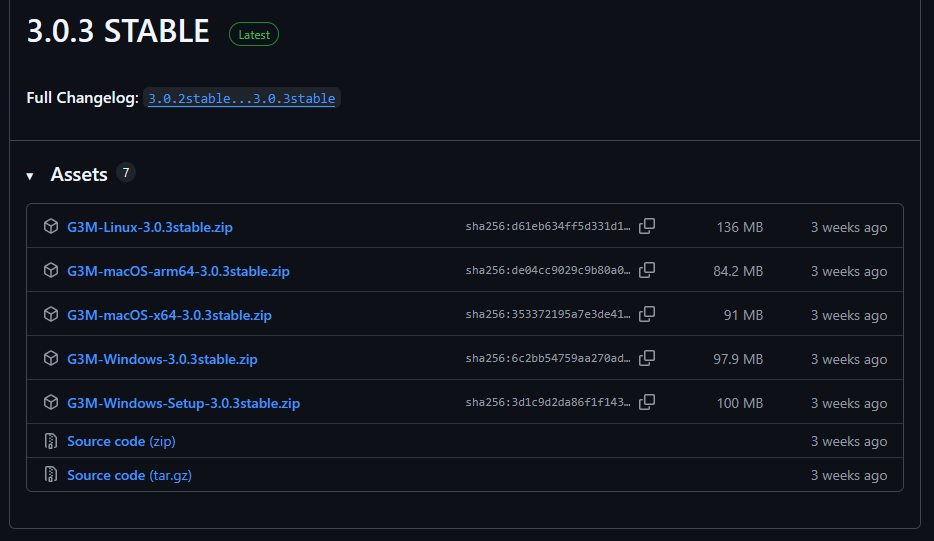
Added instructions for using G3M Mod Manager to the website.
Added G3M mod files to download section.
April 20, 2026 - Updated patches for Goblin Nest v1.31
April 20, 2026 - Updated patches for Goblin Nest v1.30
April 12, 2026 - Updated patches for Goblin Nest v1.29
April 9, 2026 - Mod updated to v1.6
Patched to game version 1.26
Allowed volume sliders to go to 500% for all mod sfx options. (By request, it's not my fault if you blow out your eardrums.)
April 9, 2026 - Updated patches for Goblin Nest v1.25
April 7, 2026 - Bugfix for v1.5 Itch.io version
Missing function call in the itch.io version of the mod. Same download link. Steam users unaffected.
Error with the xDelta patch as well - fixed. (Hopefully.)
April 6, 2026 - Updated mod to v1.5
Fixed a bug where a sound was supposed to play but a character had no voice.
April 5, 2026 - Updated mod to v1.4
Added new SFX - now 69 (nice) new sound effects.
BJ SFX for applicable cells.
Persistent voice framework, prisoner voices now persist between saves and moving around cells.
April 4, 2026 - Updated mod to v1.3
Replaced some old sounds.
Added new SFX - now 47 new sound effects!
Added volume and frequency options!
April 4, 2026 - Added patch for Itch.io version 1.20
April 3, 2026 - Mod updated to version 1.20
Install Instructions
Going forward - it's best to stop using G3M, all new mods use GNX (the modding framework), which allows them to work together seamlessly. As far as I'm concerned, you can uninstall G3M. The rest of this guide is preserved for posterity.
Install with Goblin Nest Extender
GNX now has it's own installer, you can find the latest release on it's Github releases page. Download the GNX_vX.X.X.exe, put it in the same directory as GoblinNest.exe, and run it. It will have on-screen directions to guide you from there.
After GNX is installed, you only need to download the GNX version of Moan Mod from below. The GNX installer can auto-install it for you, all you have to do is drag and drop the zip file onto the GNX executable.
Depreciated. Please don't use G3M - I hate having to help people trouble shoot it. --Jadwick
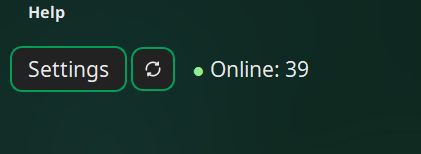
G3M has been giving people some issues. I've tried to document the most common problems people have been having in the modding discord. Make sure you check out G3M troubleshooting if you are having problems.
Return your game to it's original (vanilla) state.
This step only needs to be followed if you have previously modified your game.
Rename your backup of the original data.win file, overwriting the modded one.
You can also use Steam's 'Verify integrity of game files' option in the game's properties.
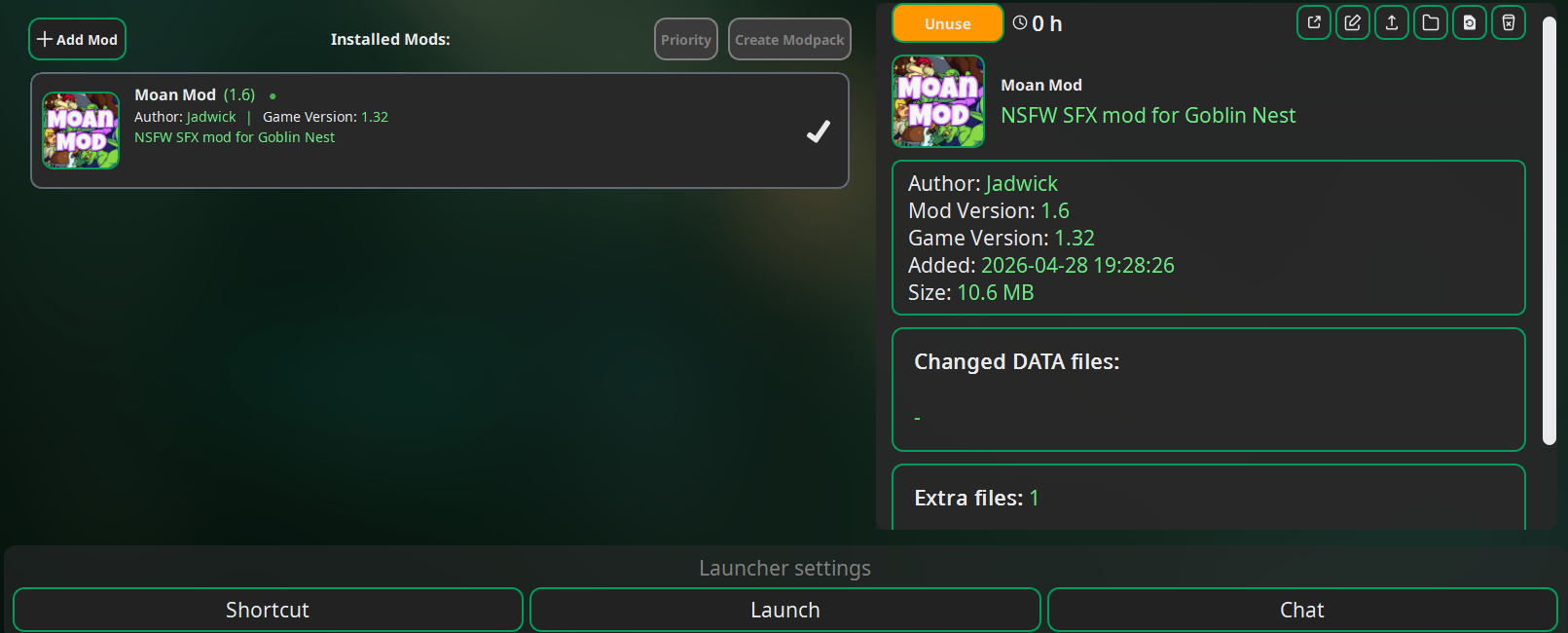
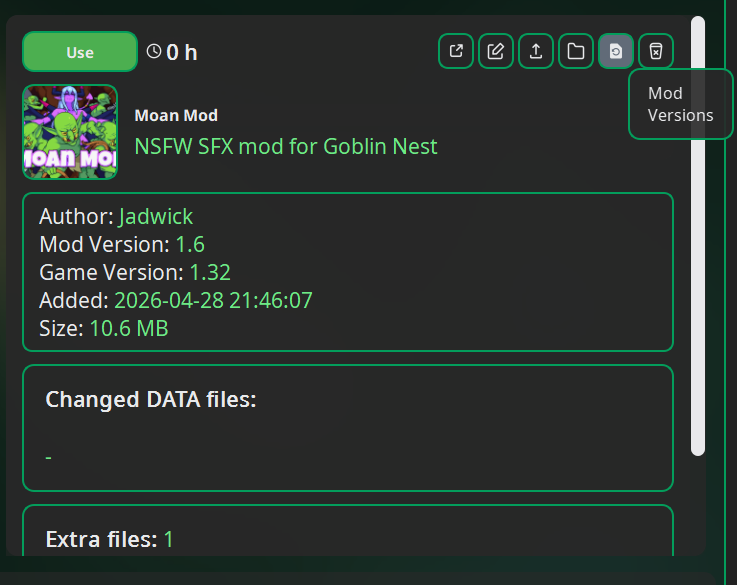
In your G3M Library, with Goblin Nest selected in the drop down, and Moan Mod selected in your mod list, press the
'Mod Versions' button on the right side of the screen.
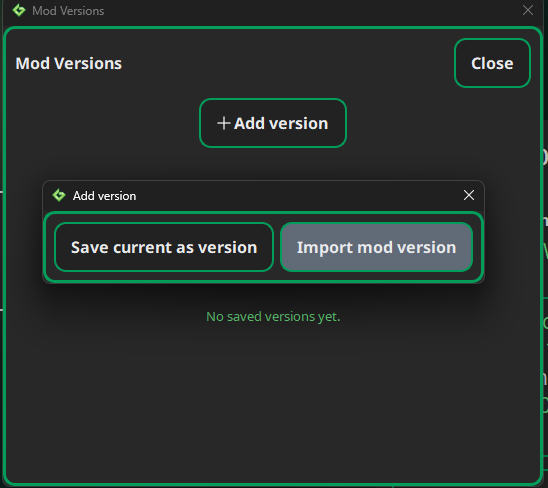
In the 'Mod Versions' popup window, click 'Add version'
In the next popup window, select 'Import mod version'.
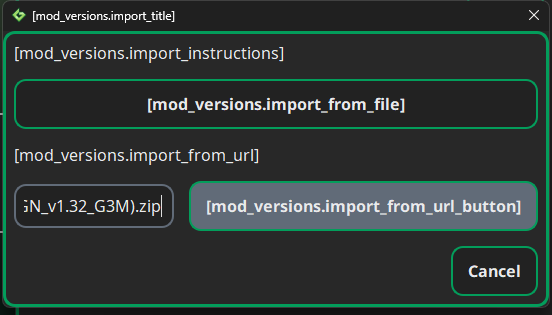
The next screen is similar to the 'Import Mod' button on the first install, but at the time of writing the G3M UI is incomplete.
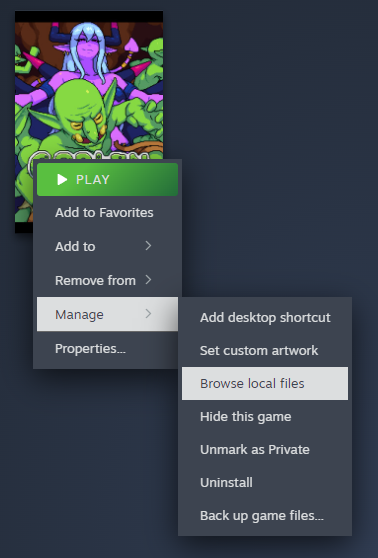
You can get direct access to the game's directory through Steam by right-clicking the game's title, going to 'Manage', and then 'Browse local files'.
If you bought the game on itch.io, it will be wherever you extracted it.
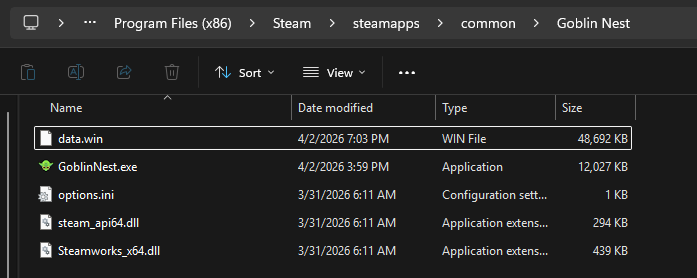
Locate data.win
If you do not have file extensions turned on in File Explorer, it will only say data.
It will be in the same folder as the game executable, GoblinNest.exe
Backup the original data.win file.
If you copy and paste it into the same folder it will automatically rename it to data - copy.win for you.
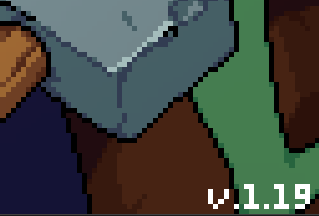
Determine your game version.
The game version is shown in the bottom right of the title screen.
Download the corresponding file for your game version in the download section below.
The patches will ONLY work for the EXACT copy of the corresponding VANILLA game version.
There IS a difference between the itch.io versions and the Steam versions, make sure you get the right one!
The mod version and game version no longer use the same numbering scheme.
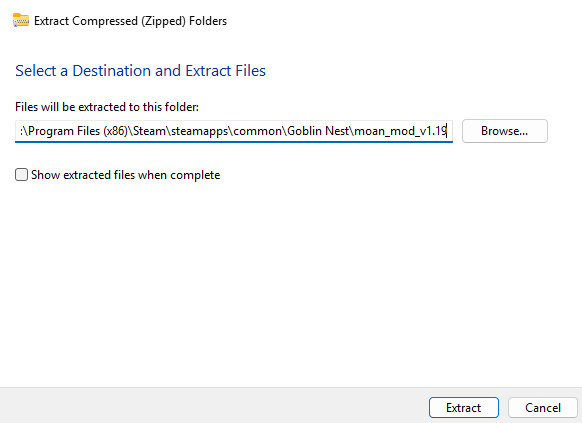
Extract moan_mod_v#_(GN_v#_DISTRIBUTOR).xdelta from the zip file.
moan_mod_v# indicates which version of the mod it is. Typically there will only be only version of the mod avaible per patch of the game.
(GN_v#_DISTRIBUTOR) indicates which version of the game it is for.
The 'DISTRIBUTOR' in the name will match which platform you own the game on, either Steam or Itch.io
The zip file icon looks like a folder with a zipper on it, the actual mod file is inside it and looks like a blank sheet of paper.
You can right-click the zip file and hit 'Extract All' to extract everything from it. By default this will extract everything into a folder named exactly the same as the zip file.
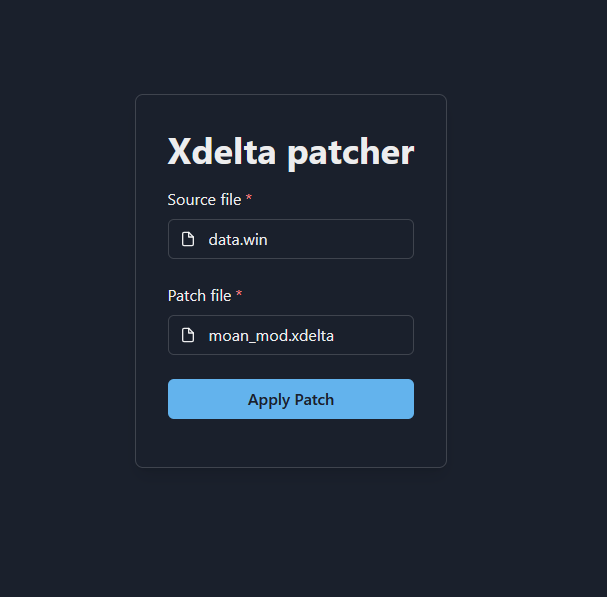
The original/source file should be the data.win file you located earlier.
The patch file is the moan_mod_v#_(GN_V#_DISTRIBUTOR).xdelta file.
After selecting the files, press 'Apply Patch' and wait for the process to complete. It should only take a moment.
Save the new file as data.win in the install directory. Overwrite if prompted, you made a backup right?
Profit!
Play the game as usual by launching GoblinNest.exe or from Steam.
Enjoy the mod!
xDelta Uninstall Instructions
As long as you made a backup data.win during installation, going back to the original unmodded game is as simple as deleteing the modified data.win and renaming your backup file to data.win.
xDelta FAQ
What is this .xDelta patch file?
Delta encoding, or difference encoding, is a method of recording the differences between two files. xDelta is a popular tool for delta encoding. Essentially you can think of an xDelta patch as instructions for your computer to make one file into another.
Why can't you just give me the modified game files directly?
All of the game files are bundled together, which is the data.win file. This bundle contains all the code, music, sounds, and art for the game, all of which are either owned by or licensed by the creator of the game. While suppplying you with the modified data.win file would allow you to more easily just drag and drop the files and play the mod, it would also be distributing copyrighted material.
These xDelta patches DO NOT contain any copyrighted material. They are only instructions for your computer to modify an existing file you already have.
Distributing the mod in this way is more respectful to the original creator, legal, and bandwidth effecient as the patches are much smaller than hosting the entire modified file.
Can I apply an older version of mod to a newer version of the game?
Due to how delta patching works - no. The patch and source files must match exactly.
If the game updates but the mod doesn't, can I still play the mod?
It would technically be possible - if you kept an older version of the modified data.win file you could simply replace it. It would essentially be downgrading your game to an older version though.
G3M Troubleshooting
I've added a mod, and it's says it's imported successfully, but it doesn't appear in the mod list!
There are several possible ways to solve this that have been found to work, they are listed below from easiest to most involved. Try them in order or jump to the most extreme, your choice.
Restart G3M
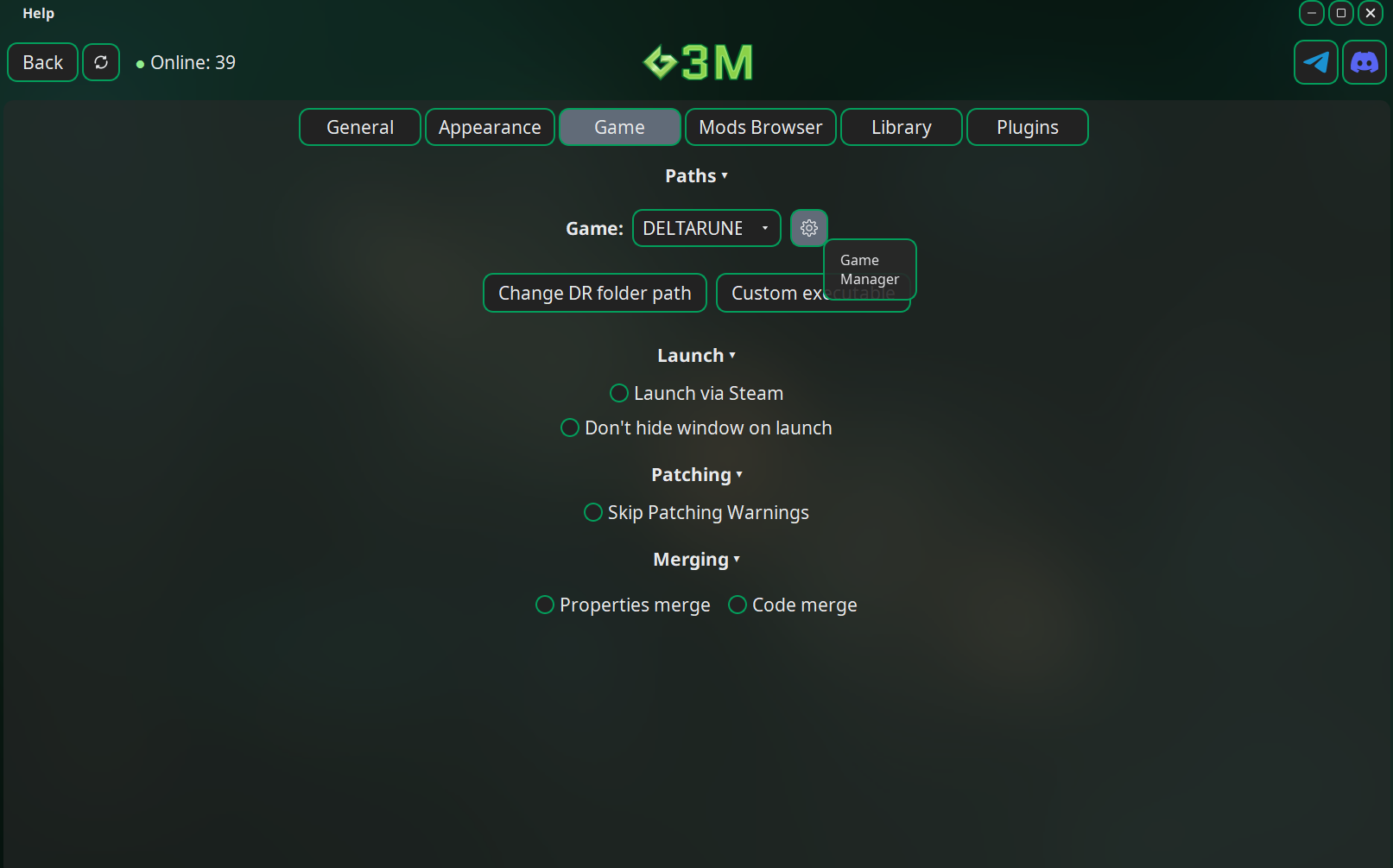
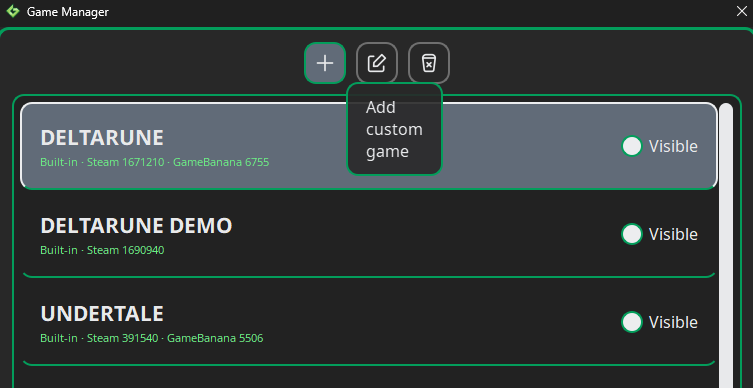
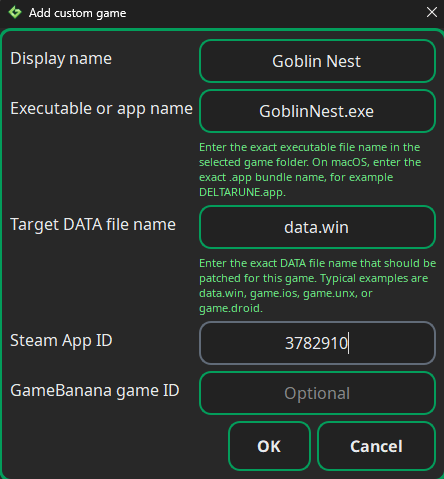
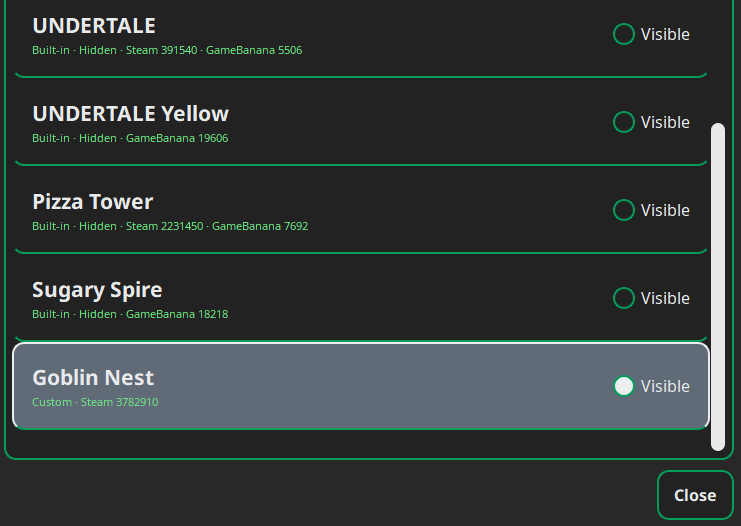
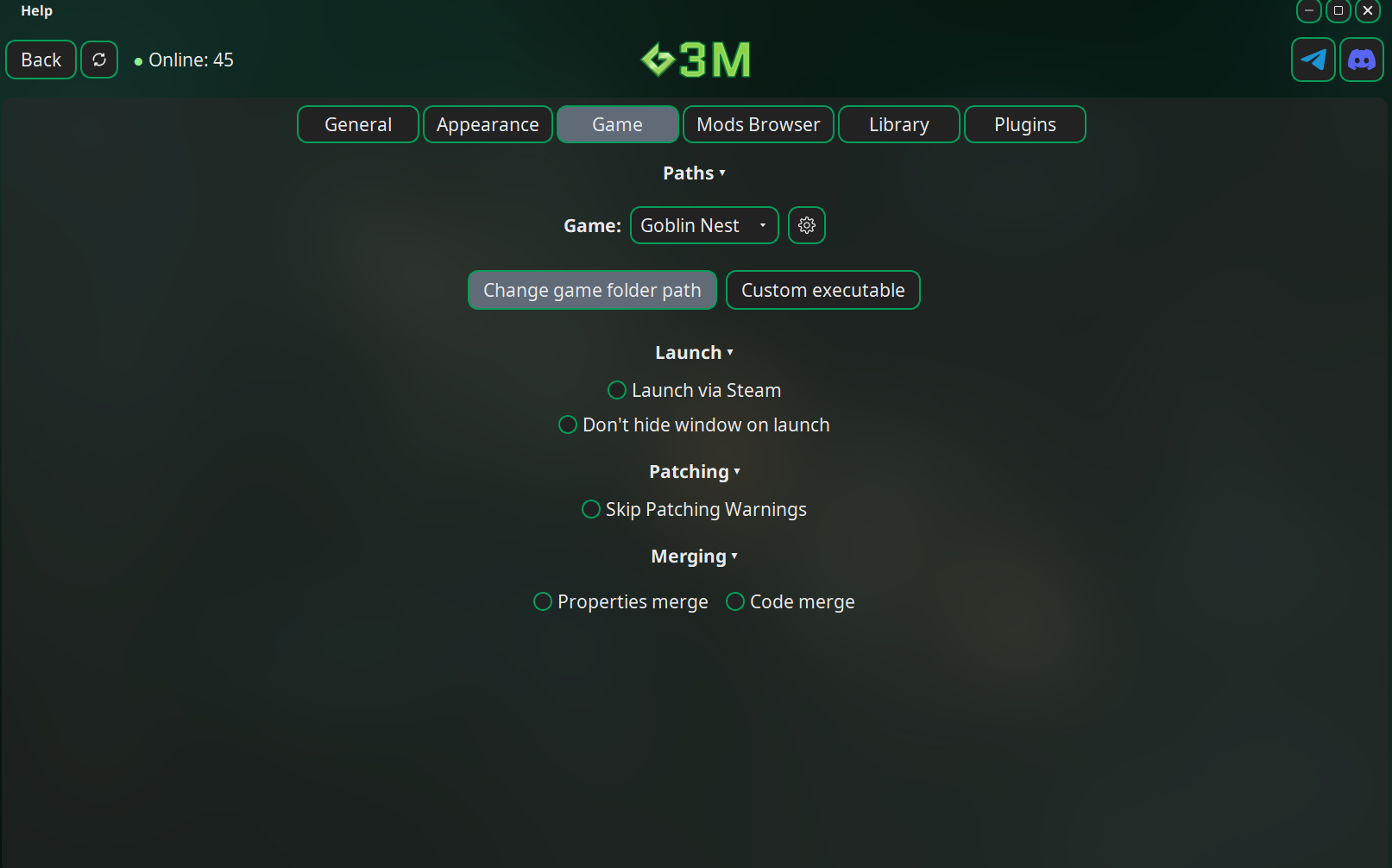
Delete Goblin Nest from G3M's 'Game Manager' and re-add it following step 4 from the installation instructions. It may be beneficial to restart G3M after you've removed Goblin Nest as well.
Remove the G3M appdata.
On Windows, navigate to %USERPROFILE%\AppData\Local
This is the equivalent of C:\Users\[YOUR USER NAME]\Appdata\Local
Delete the G3M directory.
Restart G3M.
When launching the game from G3M, I get a 'Patching Warning' that says 'Data file mismatch'!
Typically this is a minor issue, but it's important to make sure you have a vanilla UNMODIFIED install to use with G3M. G3M does all the mod patching everytime the game is launched.
If you have an unmodified install and get this warning, it's typically safe to ignore. However, if you are using only Moan Mod, make sure you are getting the correct G3M patch for your version of the game. Itch.io and Steam versions of the vanilla game differ only slightly, but do have a different checksum which will throw this warning.
Most other mods are built with the Steam version of the game, so if you are using an Itch.io version, you may run into this warning. Again, it's fairly safe to ignore it.
'Failed to import mod: Existing mod folder not found'!
I've personally got this error after deleting mods. Restarting G3M fixed it for me. Other's have had to delete Goblin Nest from the G3M 'Game Manager' and re-add it like in step 4 of the installation instructions.
'The data.win file was not found in the game directory.'!
Make sure you've done step 5 from the installation instructions. Otherwise G3M defaults to using the directory where itself is installed.
I'm getting Game Maker errors when playing the game!
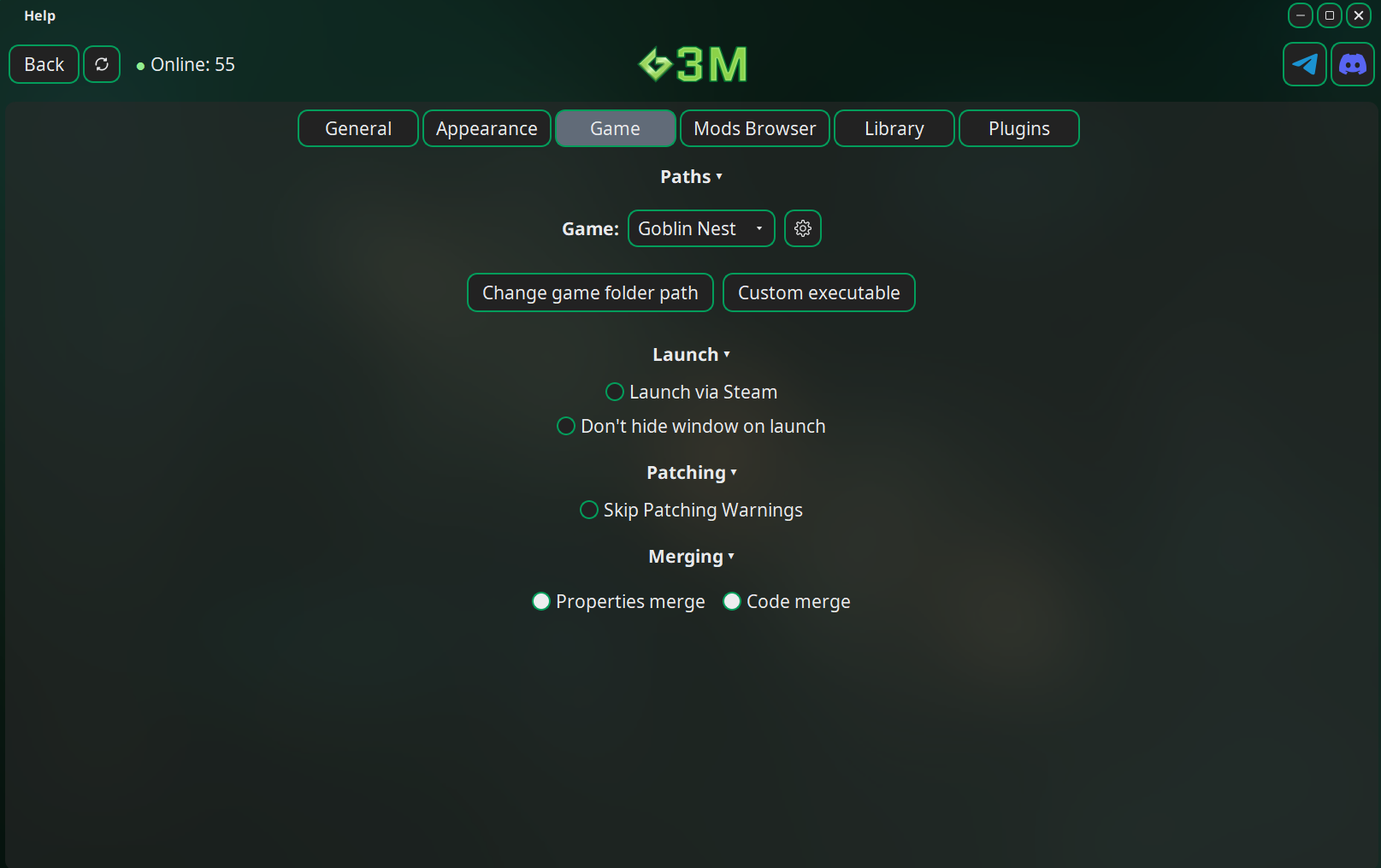
Again, ensure you have a UNMODIFIED version of the game installed. Then make sure you have 'Code Merge' and 'Properties Merge' both enabled in G3M's settings.
URL importing does not work!
Directly download the G3M mod link instead. It is a zip file, but you don't need to extract it like you do with the xDelta patches, G3M handles all that on it's own. Simply use the 'Chose File' option on import and browse and select the zip file you downloaded.